
Show Blender File Thumbnails in Windows Explorer
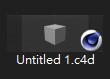
A few months ago, I started using C4D for work
and noticed that Windows Explorer shows thumbnails for C4D files right away.
So I wondered: can Blender do the same?

Found it: how to unlock Blender thumbnails!
It turns out to be a bug in the Blender Windows installer,
so we need to fix it manually.
The process involves the Command Prompt (cmd) and a bit of copy-and-paste (just 2 lines).
Think of it as a small surgery: do it once and you’re set for good.
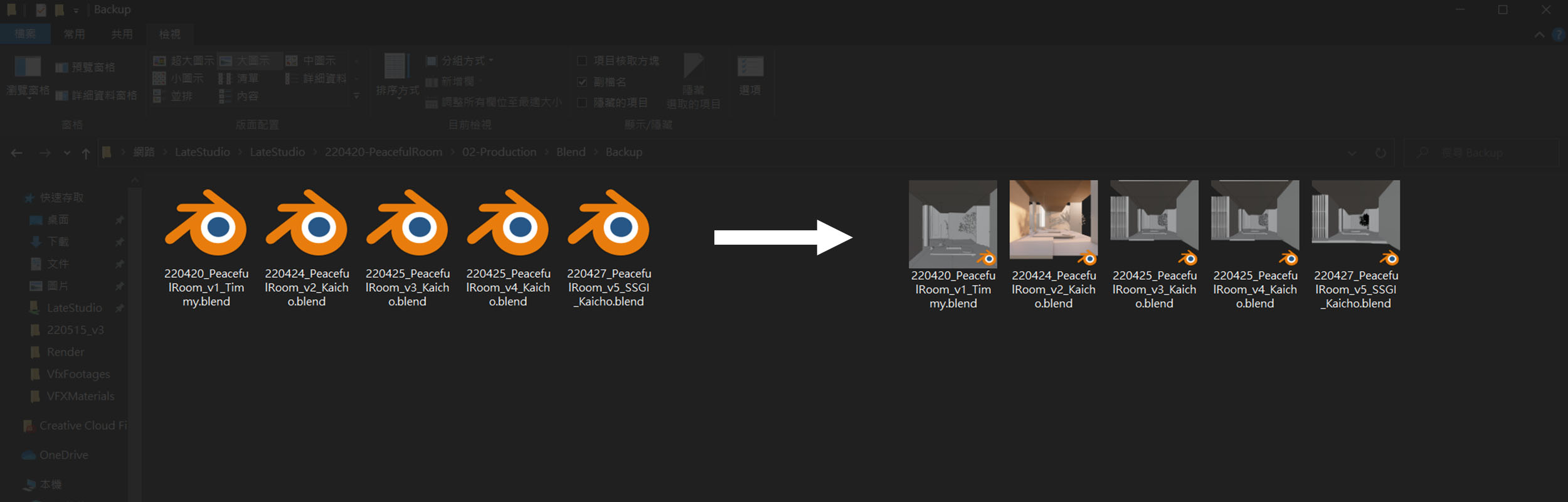
Blender files go from this to this:
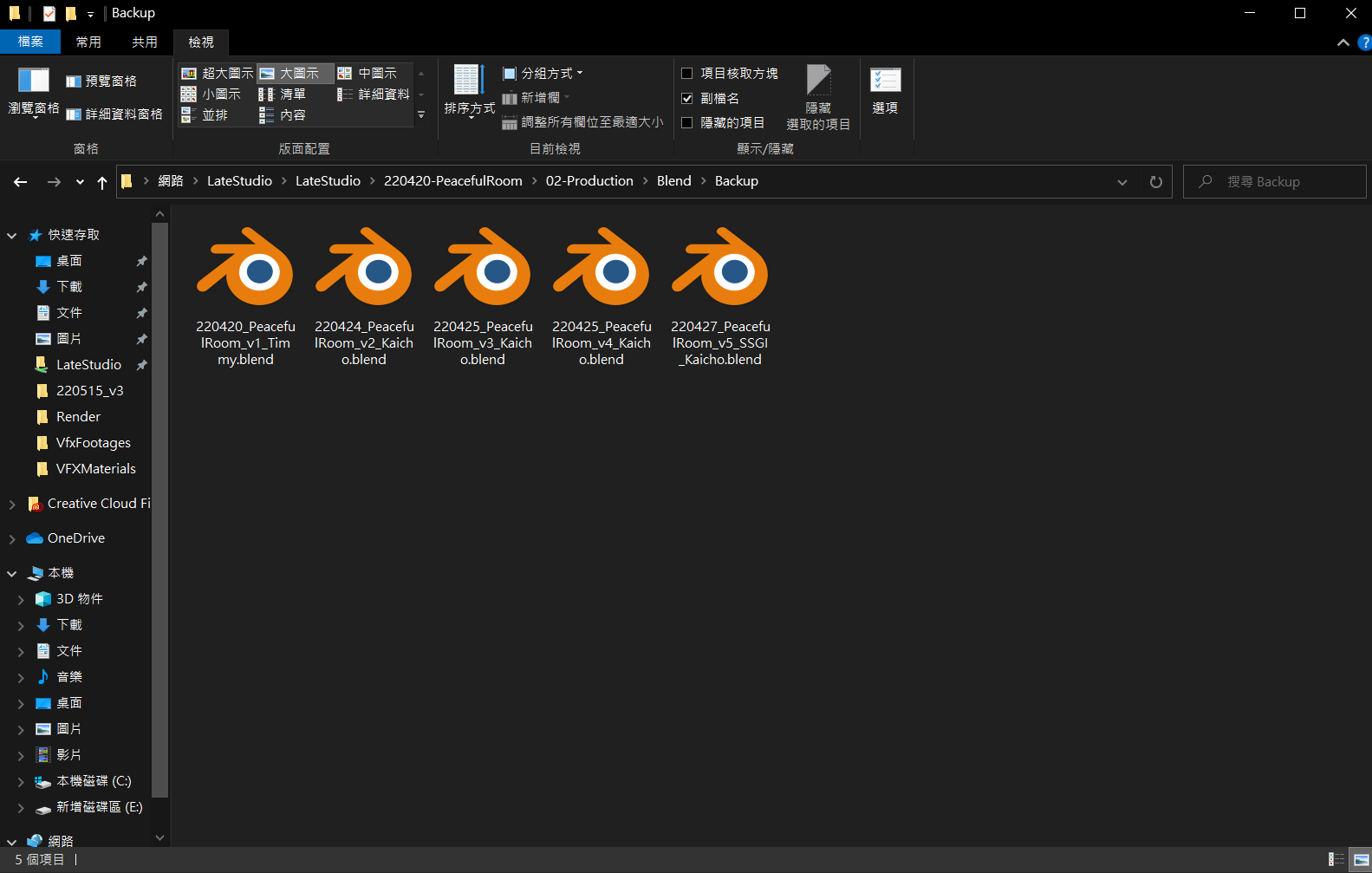
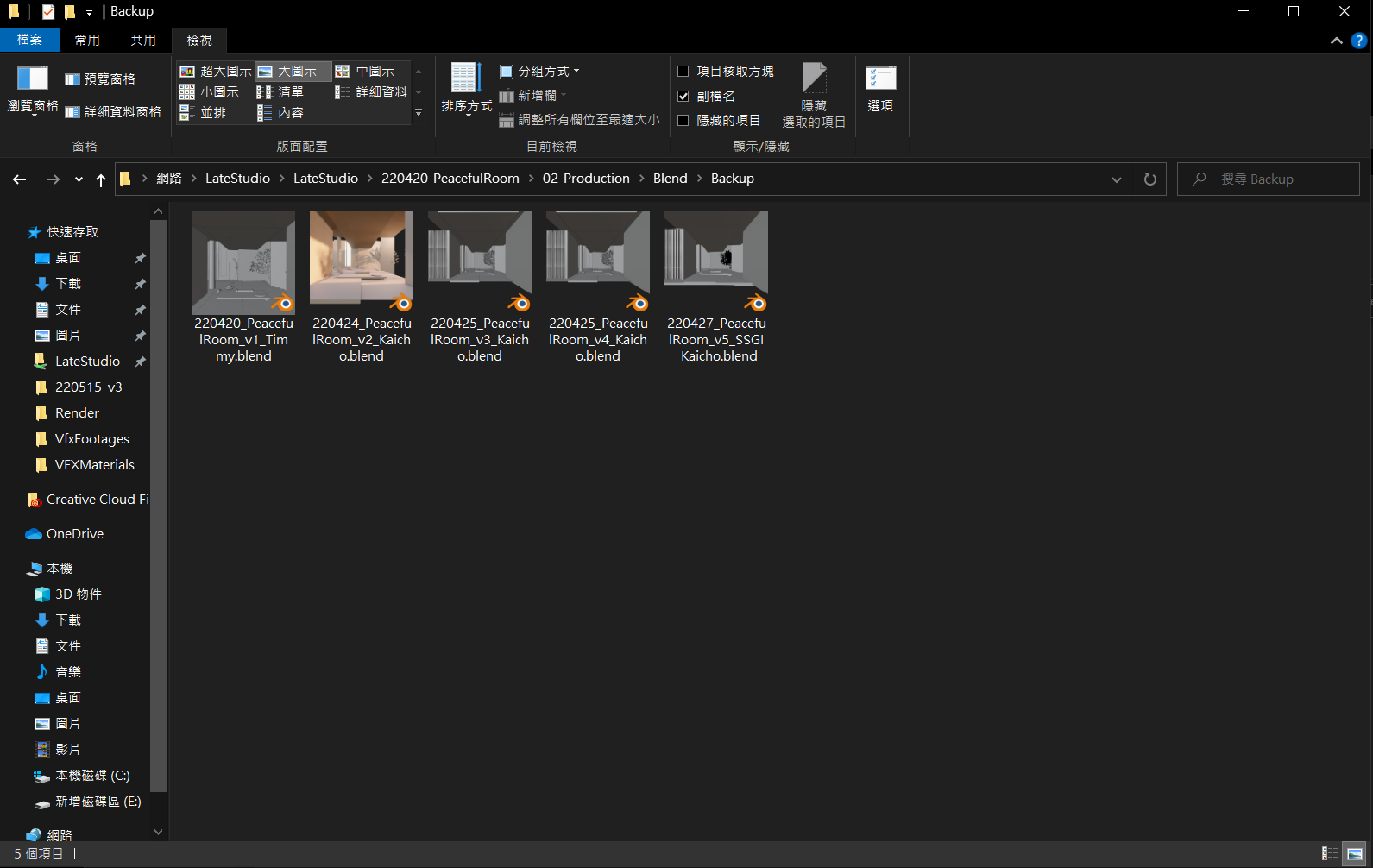
Let me walk you through it step by step.
Step 1 - Open cmd
Search for cmd in the Windows Start menu
to open the Command Prompt.
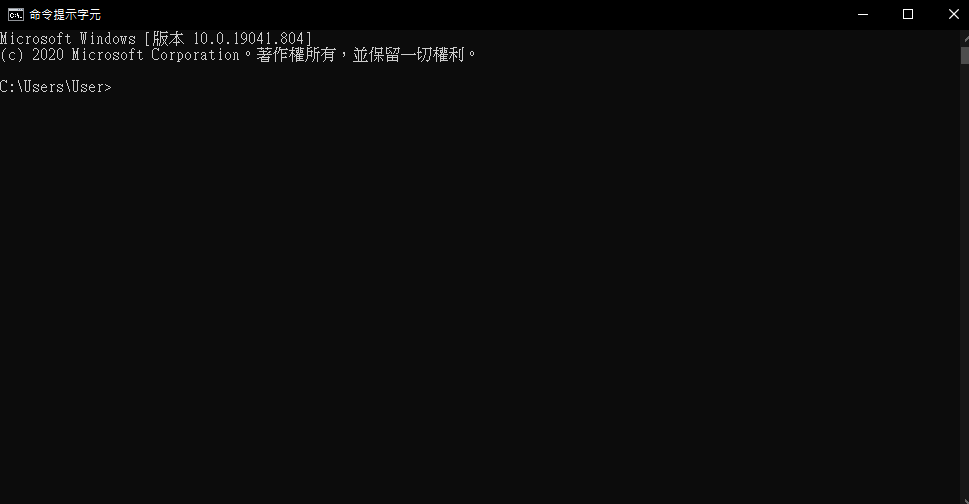
Step 2 - Line 1: Go to the Blender folder
First, find where Blender is installed and open a folder like the one below.
If you see more than one Blender version, just pick one you actually use.
My Blender is installed in the default location, under Program Files on the C drive:
C:\Program Files\Blender Foundation\Blender 3.1
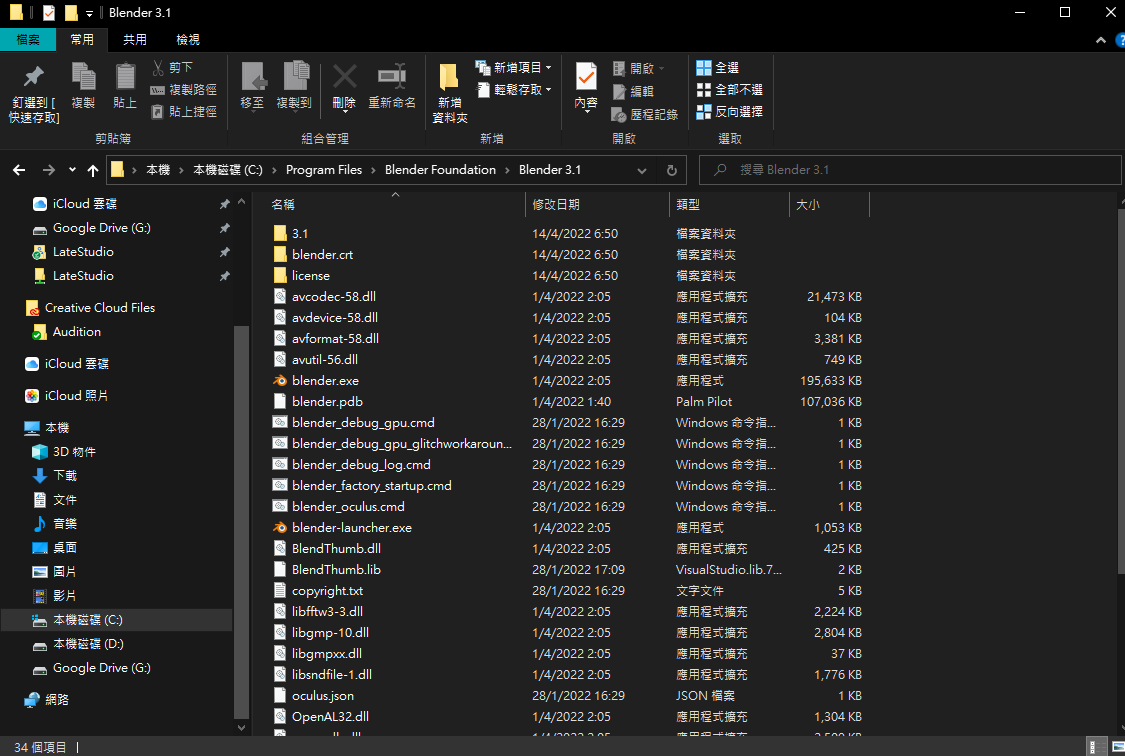
Once you’ve found the path, add “chdir” in front of it.
That’s your first line of code.
chdir C:\Program Files\Blender Foundation\Blender 3.1
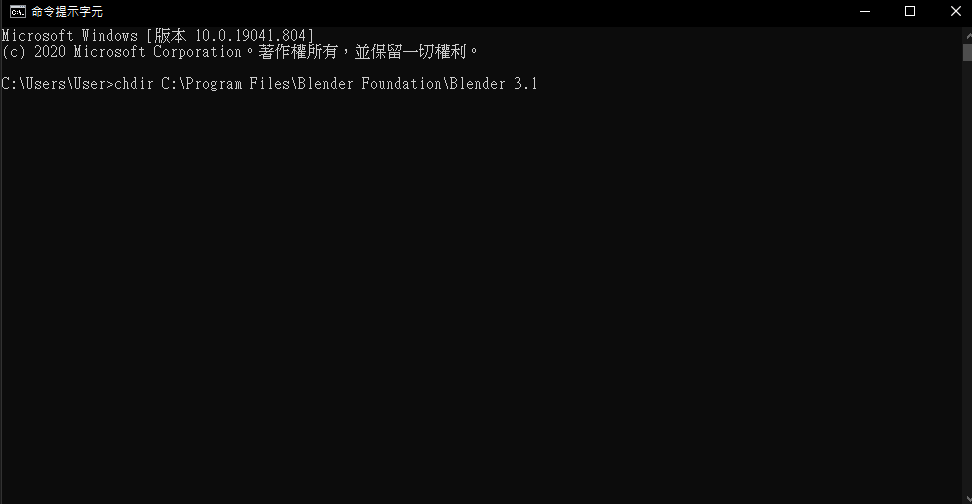
Press Enter and you should see the result below.
This tells cmd which folder we want to work in.
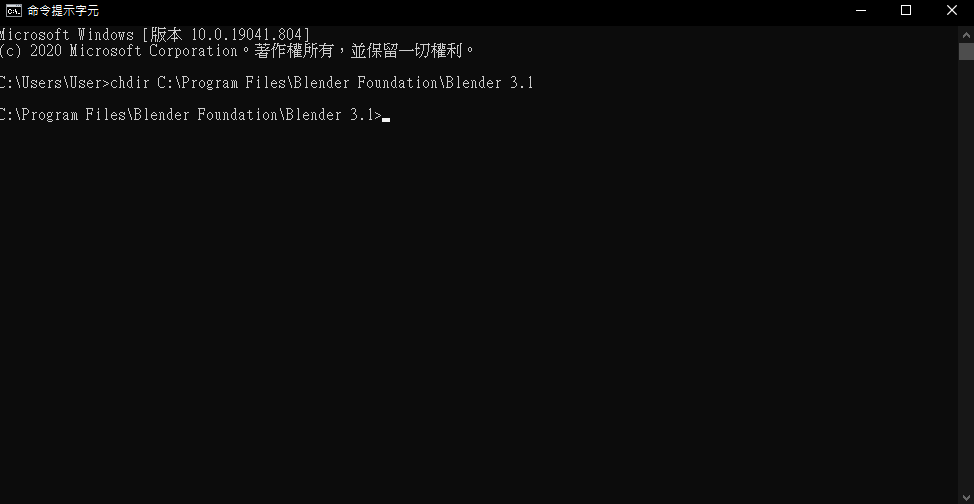
Step 3 - Line 2: Give Blender permission
To let Blender change the thumbnails of .blend files,
enter this command:
blender.exe -R
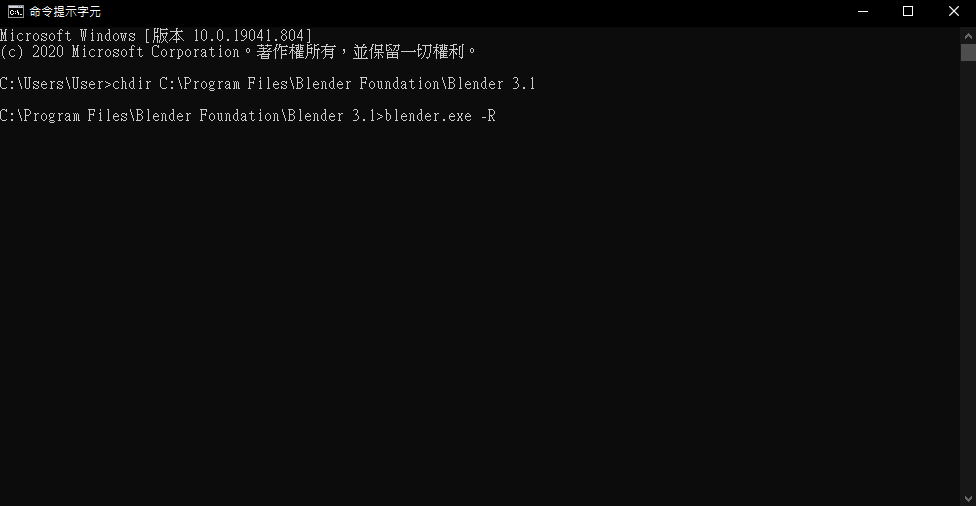
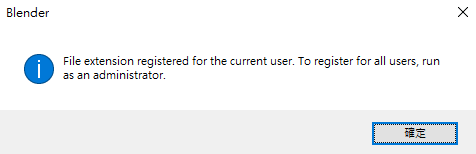
After pressing Enter, a small message will pop up.
Just click OK.
Then cmd will show the message below,
which means it worked!
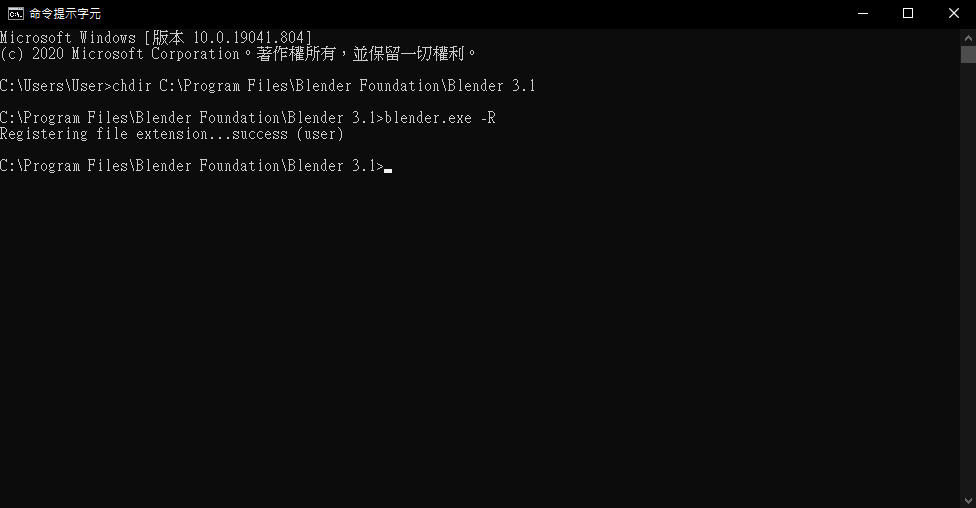
With these two commands,
all your Blender files will now show thumbnails.
And it’s a one-time fix: you only need to do it once, not every time you start your computer.
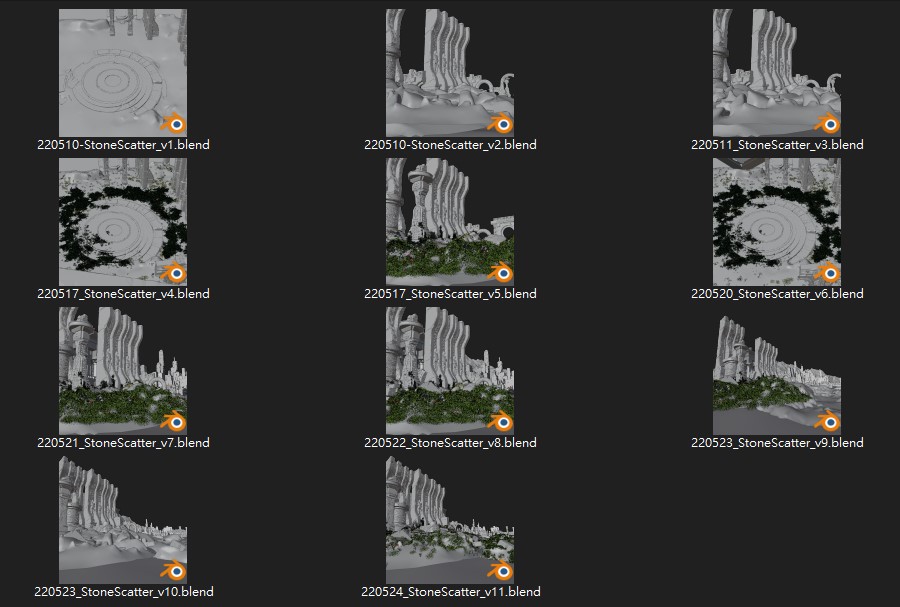
Note: File view modes
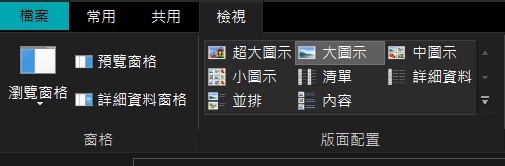
Windows offers several ways to view files,
and not every view shows thumbnails. That’s normal.
In some views the icons are too small to show a detailed preview.
Only 3 views don’t show content thumbnails: Small icons, List and Details.
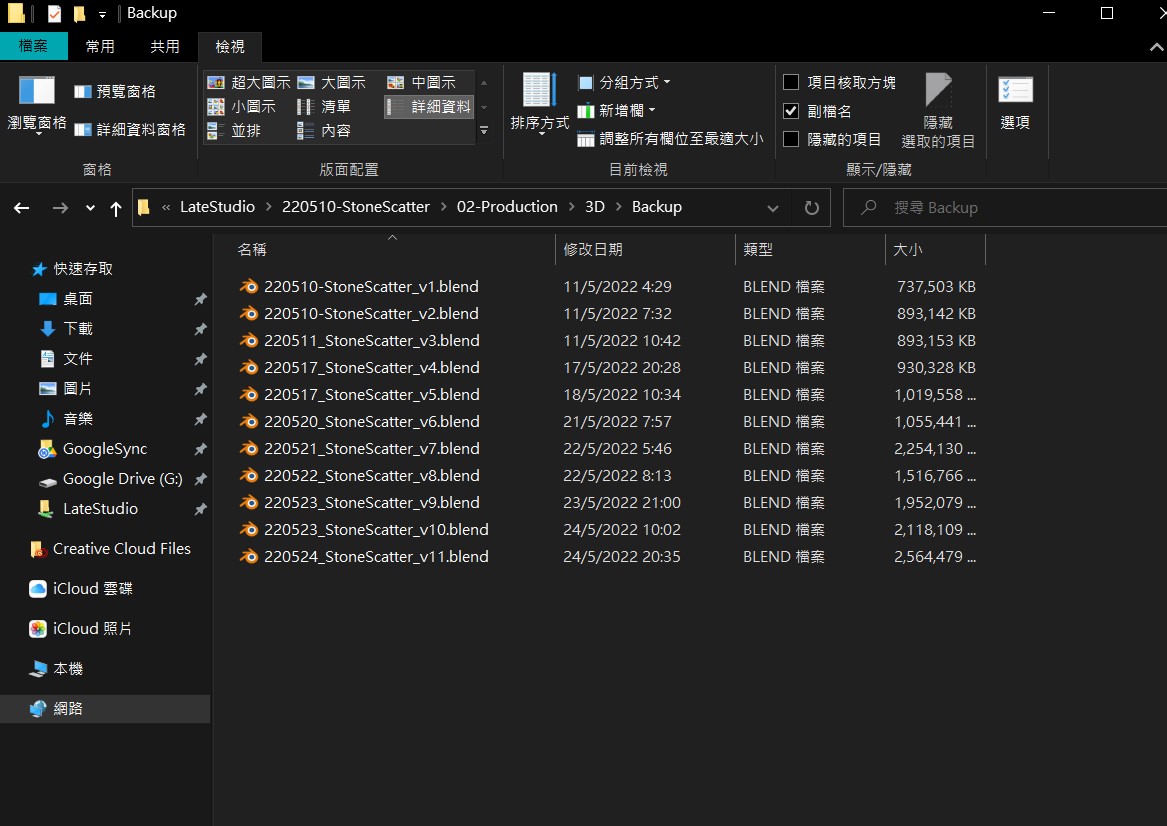
I usually use “Large icons” and “Details”.
Large icons let me recognise files visually at a glance,
while Details shows everything clearly, so I can quickly find a specific version by name and keep an eye on file sizes.
Bonus: Thumbnails for PSD files
With Blender thumbnails working, finding files became much easier.
Then I thought it would be great if PSD files, which I also use a lot, could show thumbnails too.
So I found a third-party tool called SageThumbs:
https://www.cherubicsoft.com/en/projects/sagethumbs/
It solved the problem nicely, and I recommend it (it supports PSD and AI files).
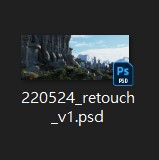
By the way, SageThumbs ignores image files larger than 100 MB by default.
I changed that to 1000 MB so that all my PSD files show thumbnails.